[Update] Windows Live Wave 4: Live Writer Changes And New Features
 I had hoped for Live Wave 4 to be made available at MIX10 but that didn’t happen. Wave 4 leaked images have been making their way every few weeks reminding us of the suite and also pushing our patience a bit too far. Earlier today fellow blogger Michael over at His-Microsoft-Life has posted download links to leaked build of the Windows Live Essentials Suite. The installation was smooth and therein were two changes. The installation screen is now improved and the taskbar icon in Windows 7 has the installation progress bar icon-overlay. Screen shots:

I tried Windows Live Writer first and I gotta say that I love the new clean look. The Ribbon now gives me more content space, categories, tags and date seem a lot better on top. Besides the Ribbon here are some changes in Live Writer Build number 15.2.2583.119

Clean Interface:

Picture Editing:
The picture editing tools look more usable with no more switching between tabs. Screen shot:

Insert Picture from Web:
The option wasn’t available for quite sometime and one needed to make use of a plugin if you wanted to insert an image using its URL. Not anymore, Wave 4 brings the option back. Screen shot:

Hyperlinking:
Here’s an excellent behind-the-scenes addition to Live Writer Wave 4. Say if you added an image and want to insert a hyperlink to it, the usual way is:
-
copy the URL
-
select the picture
-
select edit hyperlink option
-
paste
Now forget about the last step. The moment you hit the Insert hyperlink option, the clipboard URL will be pasted.
Blog Account Shortcuts:
This is an interesting addition and gives a bit more control over the blog. Under Blog Account on the Ribbon, you now have shortcuts like:
-
Manage Comments – takes you to the comments admin page of your blog.
-
Dashboard – takes you to your blog’s dashboard.
Screen shot:

What makes this more usable is that the shortcuts vary depending on the blogging platform you’ve chosen. The above options are for a self-hosted WordPress installation. In case of Windows Live Spaces blog, the options are:
-
Edit your space
-
What’s new
-
Statistics
Screen shot:

Content Editing:
in Live Wave 3, formatting text needed extra effort, not anymore. Wave 4 Live Writer has all the text formatting options you would need under the Home tab. Increasing/decreasing font size, font color among other features. Screen shot:

Another improvement in Live Writer is the hyphen now works as it should. It is doesn’t appear as a subtraction sign but as the hyphen should, which is a bit longer than the subtraction sign. Difference: ‘-‘ and ‘–’
Post Properties:
Since the categories, tags and date options have been moved up, the other advanced post meta options have been combined under a pop-up window which wasn’t the case in the earlier builds. The options can be accessed by clicking on ‘View all’ next to the ‘date’ option. Screen shot:

If you notice carefully the option to write a summary for the blog post isn’t there. Surprising.
There seem to be a couple of new additions as well:
-
Select all – to select all text. Screen shot:

-
Under Insert, there are two options to other than ‘Split Post’ namely, Horizontal Line & Clear Break. Screen shot:

Options Moved:
- Edit using theme
As you can see from the first screen shot I prefer to write my posts without my blog’s theme, this option has now been moved and is available under Blog Account. The option to refresh your blog’s theme is listed there as well. Screen shot:

- Publish Post
The option to post draft and edit online is now available under ‘Save’. Screen shot:

Plugins:
I make use of a couple of plugins and it was not as easy as I hoped for accessing these plugins in the previous build, I had to go to the tool bar or scroll down most of the times on the sidebar. I didn’t wished for a quicker way to access the plugins. Unfortunately, in this build accessing plugins is still quite a pain. Plugins have been moved under ‘Insert’ and there is now a box to navigate through them. A small box that still wants me to scroll. Screen shot:
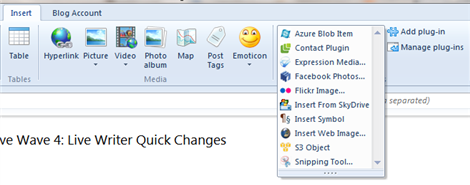
I’d rather have a separate Ribbon tab – Plugins, where I have access to all my plugins and their icons get some love.
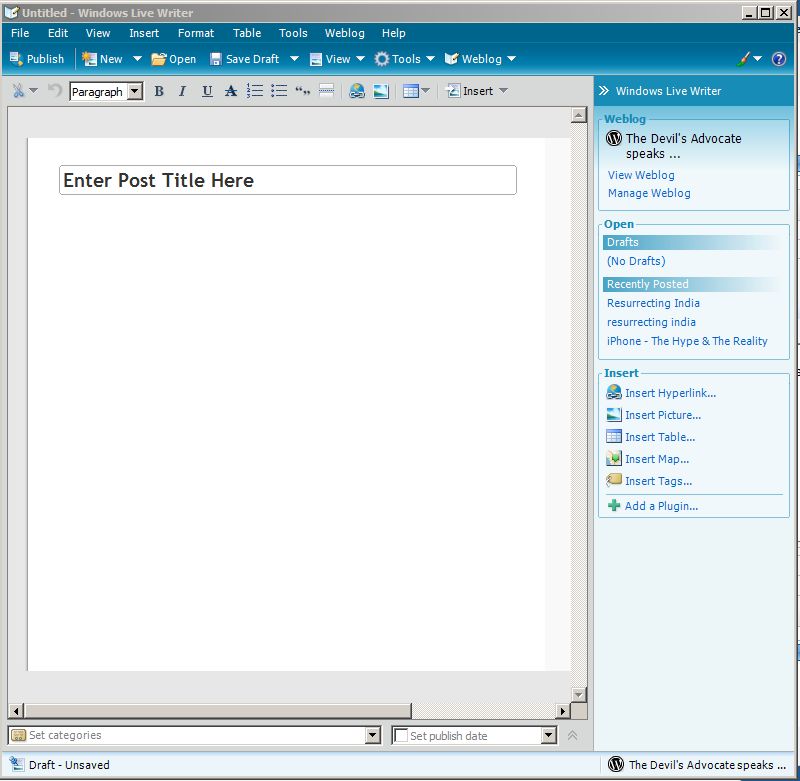
Back in 2007 I had done an extensive review of Windows Live Writer, looking at it today, it has definitely come a long way and I’ve fallen in love with it all over again. Here’s an image of Live Writer a couple of years back:
Update:
Auto Spell Check
While using Live Writer to do a post I noticed that in Wave 4, Live Writer introduces self-correcting spell check similar to that in Microsoft Word. Though basic, the spell checker will correct words like ‘teh’ to ‘the’ ‘otehrs’ to ‘others’ and so on.
Adding New Blogs:
One of the major pains in adding a new blog in Windows Live Writer was having to publish a test post to detect the blog’s theme for preview. I added a new blog in Live Writer and to my surprise it did not notify me to publish a test post for detecting the theme, instead once the wizard finished the blog’s theme was available in the edit window!
Update #2
Inserting a Youtube video couldn’t get any easier. All you need to do is copy the video URL and paste it in Windows Live Writer, it’ll insert the video with the player!
There is a catch however, copying the URL from the address bar and pasting doesn’t seem to work. If you want to use this feature:
Right click on the video link and copy the link, then simply paste. Lo and behold you’ll have the video inserted!
PS: This post was posted from Windows Live Writer Wave 4 and it is still buggy.
Update:
Bugs:
- Images are auto-aligned to the right and left by 20px.
No option to enter a post summary.There is no remove-hyperlink option available. (pointed out by ABomb)

I don’t know if ribbon is the way to go though. It makes practical sense, but I’ll miss the minimalism of Wave 3 which was pretty clean in my eyes. Btw what’s with the titlebars above the superbar on your first screenshot? Some Mac’s exposé for Windows 7?
My follow-up post will be talking about this Ribbon fantasy of Microsoft. And those titles are a bug in Chrome’s latest dev build, when the window is minimized it puts these title bars above the Superbar :P
haha I was hoping it was some cool minimise trick. Yes, the ribbon is a fine tool but it’s getting overexposed and relied on too heavily to uplift existing interfaces. Shall read your take on it :)
I am not sure I see the same thing that you see in this beta. In Post Properties I see a place to enter an Excerpt which on a WordPress blog is where you would enter the summary. Did you need to scroll down on the post properties dialog?
Also I was able to right click on a hyperlink and select remove hyperlink just like Wave 3.
Edited the post, missed the Excerpt option, the remove hyperlink option I was referring to is in the Hyperlink dialog box, that doesn’t appear for me in Wave 4.
I tried this version, the new UI looks great. But it’s annoy that the scrollbar button in preview page always stays at the bottom. This results every time after I click preview tab, I have to scroll the scrollbar back to the top of page in order to see my post preview.
I think that’s a bug, should be fixed in the subsequent releases. :)
looks great…
i always use live writer to blogging
nice to know the new version
Thanks for this thorough review! It answered a lot of my questions. I wish they had put the styles in a dropdown, put all the insert options on the home tab, and had a tab for plugins laid out horizontally. Most blog posts have media inserted but few have headings and subheadings. Obviously the ribbon religion was more important than actual users, but what else is new? I can’t wait for ribbons to go out of style! The ribbon just adds clicks and takes up too much vertical space. Displays are going widescreen, UIs should start exploiting that.